Redefining Screen Recording by Making Visual Explanations Effortless
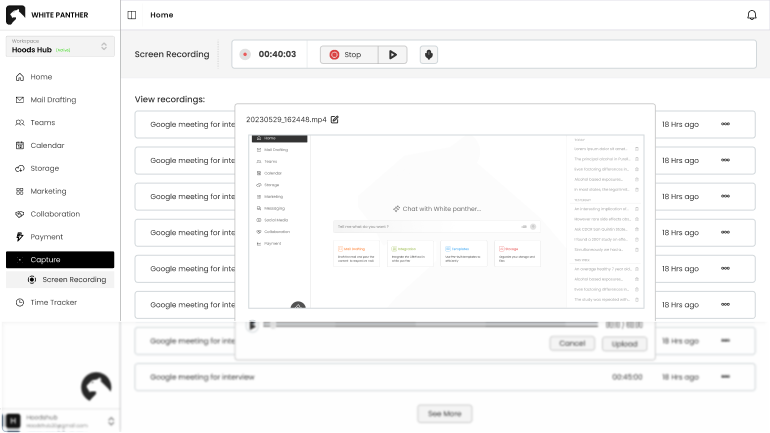
Record tabs, windows, or your entire screen in seconds, so explanations are clear, feedback stays visual, and recordings can be previewed, trimmed, or uploaded to Google Drive instantly.
Turn everyday screen activity into clear, shareable content
Make tutorials, feedback, and reports faster to create
Keep all your recordings organized inside WhitePanther
Designed for developers, support teams, educators, managers, and remote teams who need to explain visually. WhitePanther helps turn bugs, tutorials, or meetings into clear, shareable screen recordings that stay organized in one place.
Smarter Recording, Faster Sharing
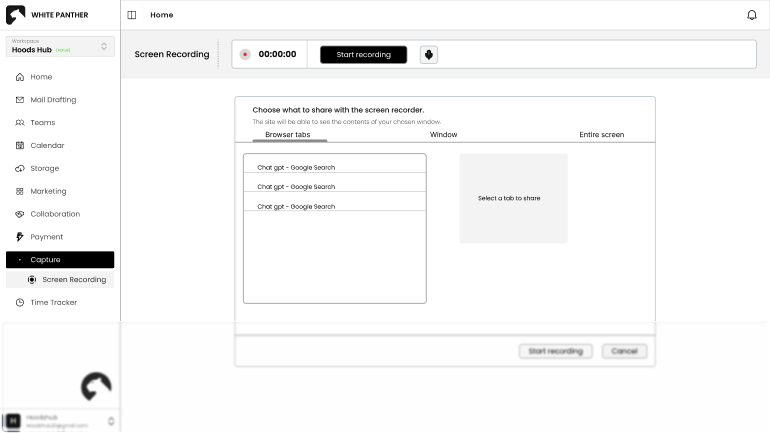
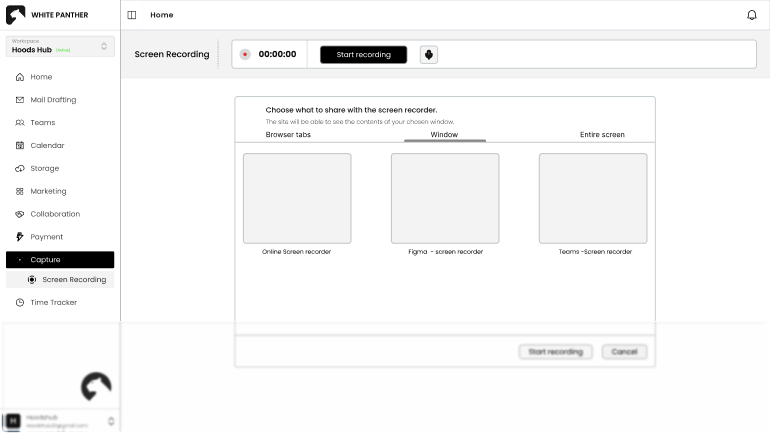
Choose what you want to capture, whether it’s a single browser tab for focused content, a specific window for clarity, or your entire screen for a complete view. Our screen recording feature offers flexibility to record only what you need.
Record tabs
Capture windows
Full-screen recording
Easy switching
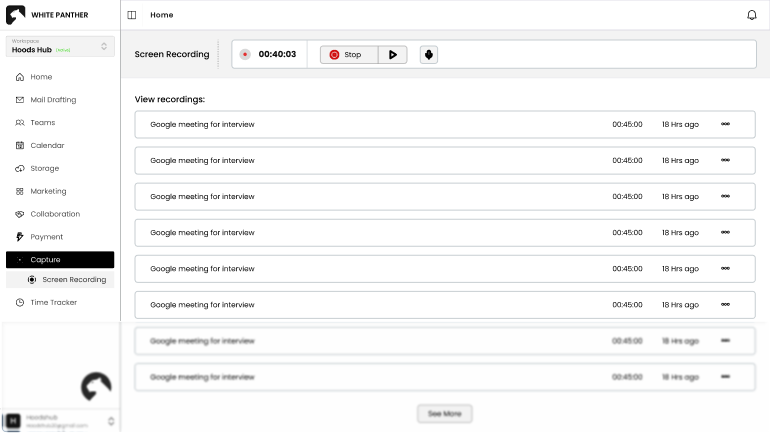
Recording should feel effortless. With straightforward start and stop buttons, you can control your session without distraction. The clear interface helps you focus on the content you are recording instead of the tool itself.
One-click start
One-click stop
Clear visual indicators
Smooth recording flow
Stay on top of your session with a visible timer that shows the recording length in real time. A mute and unmute option lets you choose whether to include audio, giving you more control over the outcome.
Duration tracking
Mute and unmute option
Clear status on header
No extra setup needed
Make sure your recording is exactly how you want it before sharing or saving. The preview option lets you quickly review the video, check for errors, and confirm the quality without leaving WhitePanther.
Instant playback
Confirm quality
Spot errors quickly
Save time before sharing
Your Screen, Your Story
Turn everyday activity into clear, visual content that’s easier to understand, faster to share, and always organized.
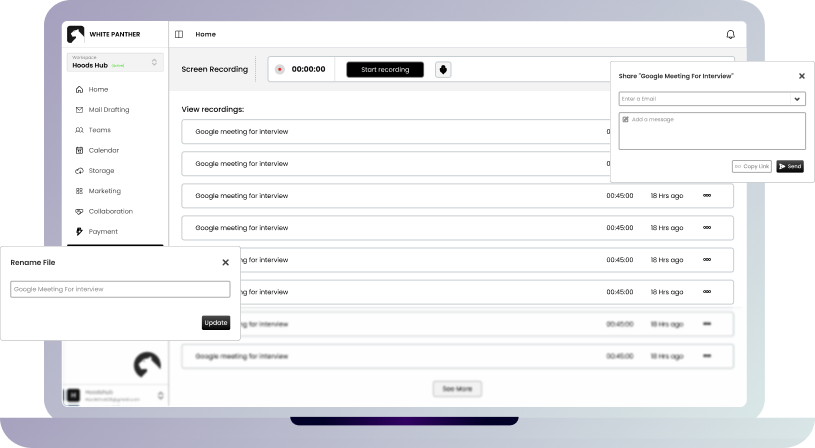
Screen recording is not a separate tool. It’s designed to make visual explanations faster to create and easier to share across your everyday workflows.
Screen Recording + Instant Capture
Start recording in one click and capture your screen without setup drama. Keep it quick when you need to explain something fast.
Screen Recording + Shareable Link
Generate a shareable link right after recording so you can send it instantly without heavy file handling.
Screen Recording + Cloud Storage
Save recordings directly to connected cloud storage so visuals stay organized, accessible, and easy to share when needed.
Absolutely. You can record audio in your recordings. We have an mute or unmute button for your microphone that lets you record audio with a single click.