As we move into 2026, teams are working across time zones, projects, and devices more than ever. Remote, hybrid, in-office, freelancers, agencies, SMEs, startups… everyone is trying to answer the same question:
“How do we work together without losing half the day to context switching?”
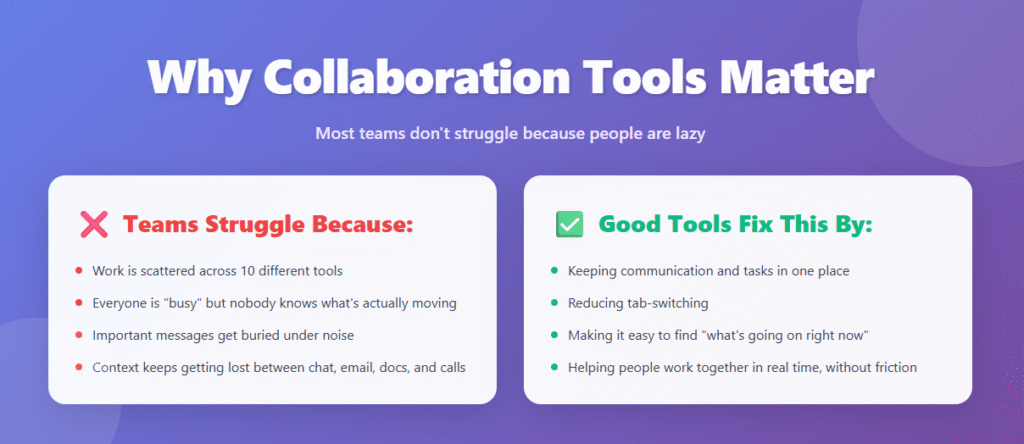
That’s where good collaboration tool comes in. The right tools keep your communication, tasks, meetings, and documents close enough that work actually flows. The wrong ones just add more noise.
In this article, we’ll walk through the top 11 collaboration tools to use in 2026, starting with WhitePanther as your all-in-one tab dashboard, followed by focused tools that excel at chat, documents, projects, design, and brainstorming.
By the end, you’ll have a clear picture of which tools fit your team, instead of just installing “whatever is trending” and hoping it helps.
With that in mind, let’s go through the tools.
Top 11 Collaboration Tools for Better Collaboration
1. WhitePanther – All-in-one workspace without the tab chaos
WhitePanther is built for teams that are tired of juggling email, Slack, Zoom, Notion, calendars, timers, and 5 other tools just to get through a simple workday.
It’s an all-in-one dashboard where you can handle:
- Emails
- Meetings and calls
- Tasks and projects
- Time tracking
- Screen recording
- AI content drafting
- Cloud storage (via Drive, Dropbox)
All from a single tab, with no reloads and no switching between apps. Instead of your workday being 60% “tool management,” you just open WhitePanther and stay there.
Key collaboration features
- Shared workspace for everything: Your team’s email threads, project boards, meeting notes, and recordings sit in one screen. No “Where was that link?” moments.
- Tasks + communication on the same screen: Discuss work next to the task, not buried in another app. You can see everything, deadlines, status, assignees and more.
- Built-in calls, screen recorder and meetings: Get chats, calls and meetings built in. Start a call, share screen, and record right from the dashboard.
- Time tracking tied to real work: Your team can log time that connects with the actual task and projects, so you can see where the efforts are going.
- AI assistance inside your workflow: Use AI to draft emails, write content, generate ideas and more. It is powered by Gemini, so you can save your time doing mundane task.
- Perfect for multi-tool teams: Still need Google Drive or Dropbox? Cool. WhitePanther connects with them, so you manage files from the dashboard instead of switching to another tab.
In simple terms: if your team lives in email, meetings, tasks, and client communication, WhitePanther lets you do all of it without bouncing between five apps every 10 minutes.
2. Slack – Real-time team chat that feels like a digital office
Slack is the classic team messaging app. Channels instead of email threads, quick replies, and integrations with pretty much everything.
Key collaboration features
- Channels for topics, teams, or clients: Create #marketing, #dev, #client-project-x, etc. Everyone sees the same conversation and files.
- Threads to keep replies organized: No long messy chat streams. People can reply inside a thread, so discussions stay focused.
- Huddles and clips: Quick audio/video calls and short screen recordings reduce the need for scheduled meetings.
- App integrations: Connect tools like Google Drive, Notion, GitHub, or Jira. Updates arrive in channels instead of multiple inboxes.
Works great for communication-heavy teams, although you still need other tools for tasks, docs, and meetings.
3. Microsoft Teams – Chat + meetings inside the Microsoft ecosystem
If your team lives in Outlook, Excel, PowerPoint, and SharePoint, Microsoft Teams is the glue holding it all together.
Key collaboration features
- Chat, channels, and meetings in one app: Keep team messages, calls, and recurring check-ins in the same place.
- Deep integration with Office 365: Co-edit Word, PowerPoint, and Excel files right from Teams. No downloading, no emailing attachments.
- Calendar and meetings: Schedule and join meetings directly from Teams, with recordings and captions for later.
- Guest access: Invite clients or vendors to certain channels without exposing everything.
Ideal for enterprises and organizations already paying for Microsoft 365.
4. Google Workspace – Collaboration around docs, sheets, and email
Google Workspace isn’t “one tool” but a suite: Gmail, Google Docs, Sheets, Slides, Calendar, Meet, and Drive.
Key collaboration features
- Real-time editing: Multiple teammates can type in the same document, sheet, or slide deck. You see each other’s cursors live.
- Comments and suggestions: Leave comments, tag teammates, and propose edits without changing the original text.
- Shared drives and folders: Organize files by team, client, or project. Everyone sees the latest version.
- Meet + Calendar integration: Schedule a calendar event, get an instant Meet link, and share docs inside the event.
Google Workspace handles documents and communication nicely, but you still need other tools for structured projects and advanced task management.
5. Notion – Flexible workspace for docs, wikis, and lightweight projects
Notion is a super flexible tool where you can build wikis, roadmaps, checklists, and simple databases. Teams use it for knowledge bases, project docs, and internal pages.
Key collaboration features
- Shared pages and wikis: Centralize SOPs, onboarding docs, and project knowledge so new teammates can ramp up quickly.
- Comments and mentions: Tag teammates on a specific sentence or block. They get notified and can respond in context.
- Databases with views: Build task boards, tables, or calendars from the same data. Filter by assignee, status, or priority.
- Real-time editing: See teammates typing live on pages and blocks.
Notion is strong for organizing knowledge and simple tasks, but you still rely on other apps for email, calls, and deeper communication.
6. ClickUp – One workspace to manage tasks, docs, and goals
ClickUp is a project and task management platform designed to replace tools like Asana, Trello, and partially Notion, with lots of customization.
Key collaboration features
- Shared task views: Boards, lists, timelines, and mind maps help teams work in the format they like while seeing the same data.
- Assignable comments: Turn a comment into a mini-task. Great for follow-ups inside a task instead of scattered messages.
- Docs for internal pages: Create documents inside ClickUp with comments and mentions tied to tasks and projects.
- Goals and dashboards: See how tasks tie into larger goals or sprints, which helps alignment across the team.
Best for teams that need heavy project tracking with lots of tasks, subtasks, dependencies, and reporting.
7. Asana – Clean project management for teamwork at scale
Asana helps teams plan and track projects: campaigns, launches, sprint boards, and ops workflows.
Key collaboration features
- Projects and boards: Create structured workflows for teams like marketing, product, or ops. Everyone sees who’s doing what and by when.
- Task assignments and due dates: Clear ownership. No confusion about who is responsible.
- Project conversations and status updates: Keep discussions and progress reports tied to the project itself.
- Workload view: See how much work each person has so you avoid overloading teammates.
Useful for teams that want clarity and accountability across ongoing work.
8. Trello – Simple boards for visual collaboration
Trello is a visual Kanban board tool that gives you cards to visualize everything. Its very simple, drag and drop, so its easy to adopt, and smaller teams can get simple workflows using it.
Key collaboration features
- Boards, lists, and cards: See your work moving across stages like To Do, Doing, Done.
- Labels, checklists, and due dates: You can mark priorities, add steps and even timelines inside each card.
- Comments and attachments: It lets you add comments, so you can talk about each task directly into the task without switching to the chat.
- Power-Ups: They are basically integration like you can integrate tools like Slack, Google Drive, or Calendar.
Great when your team wants something lightweight and visual without complex setup.
9. Zoom – Video collaboration for meetings and hybrid teams
Zoom as you know is a video meeting tool but it plays a big role in how remote and hybrid teams collaborate.
Key collaboration features
- Video and audio meetings: Stable calls for 1:1s, team check-ins, client pitches, and webinars.
- Screen sharing and remote control: Work on the same screen together, review designs, debug code, or walk through docs.
- Breakout rooms: Split bigger meetings into smaller groups for brainstorming or discussions.
- Meeting recordings: Save and share important calls so absent teammates can catch up.
You’ll still need other tools for day-to-day chat, tasks, and documentation, but Zoom handles “face-to-face” collaboration well.
10. Miro – Collaborative whiteboard for brainstorming and planning
Miro is a digital whiteboard that lets teams brainstorm, map ideas, and plan visually in real time.
Key collaboration features
- Infinite canvas: Add sticky notes, flowcharts, wireframes, and diagrams in one place.
- Real-time cursors: See everyone on the board, moving, writing, and contributing live.
- Templates: Use ready-made templates for retros, customer journeys, product roadmaps, and more.
- Comments and frames: Leave feedback, group sections of the board, and present ideas like slides.
Perfect for product teams, designers, strategists, and anyone who prefers visual thinking.
11. Figma – Design collaboration in real time
Figma is a collaborative design tool for UI/UX, web, and product design. Product teams, designers, and developers live here.
Key collaboration features
- Multiplayer editing: Designers, product managers, and engineers can all view and edit the same file at once.
- Commenting on designs: Stakeholders can leave comments on specific elements instead of going back-and-forth in chat or email.
- Components and libraries: Shared design systems keep everyone working with the same buttons, styles, and layouts.
- Prototyping: Clickable prototypes help teams experience flows together and refine them before development.
Strongest for visual and product collaboration, especially in design-led teams.
How to choose the right collaboration tool in 2026
You don’t need all of these. In fact, stacking too many tools is exactly why teams burn time and money.
Use this as a starting point:
- If your team wants to minimize tab-switching and centralize everything
→ Start with WhitePanther as your main workspace for email, meetings, tasks, AI, and time tracking. - If you already use Microsoft or Google heavily
→ Pair WhitePanther with Microsoft Teams or Google Workspace where it makes sense, especially for docs. - If your team is creative or product-focused
→ Add Miro and Figma for design and brainstorming. - If structured project tracking is your main pain
→ Consider ClickUp, Asana, or Trello depending on complexity.
In 2026, better collaboration isn’t about “more tools.”
It’s about choosing a core workspace that keeps your team in sync, and then adding only what truly supports how you work.
Read our detailed guide on how to choose the right collaboration software here.
Conclusion
You don’t need more tools.
You need fewer tools that actually work together.
When you look at all 11 platforms, a pattern shows up:
- You need one place where people can see what’s happening and what they should do next.
- You need communication that doesn’t live in 20 places.
- You need documents, tasks, and meetings to feel connected instead of random.
That’s why starting with a core workspace like WhitePanther makes sense. It gives you one tab for email, meetings, tasks, time tracking, and AI support, so your daily workday becomes simpler instead of heavier.
The goal for 2026 isn’t to “adopt all the best apps.”
The goal is to build a collaboration setup where:
- People know where to look
- Work doesn’t get lost between tabs
- You spend more time doing the work than managing the tools
Pick a primary hub, add only what you truly need, and let your team settle into a rhythm. If your collaboration stack helps everyone stay in one place more often, you’re already ahead of most teams.
FAQs
- What should I look for when choosing collaboration software for my team?
Look at your daily workflow first. Choose tools that reduce confusion, centralize updates, and cut down tab-switching. If it doesn’t make communication clearer and work easier to track, it’s just extra noise.
- Do we really need more than one collaboration tool?
Usually yes, but not ten. You need one main hub for work, and maybe a few focused tools for design, docs, or whiteboarding. The problem isn’t multiple tools, it’s unconnected tools and scattered information.
- How do I know if collaboration software is actually helping?
Check behavior, not buzzwords. Are fewer tasks slipping? Are updates easier to find? Are there fewer “quick status” meetings because everyone already sees progress? If nothing changes in a month, it’s not helping.
- Is chat (like Slack or Teams) enough for collaboration?
Chat is great for quick conversations, bad as long-term storage. Pair it with a tool where tasks, decisions, and documents stay organized. If everything lives only in chat, you’ll forever scroll to find important details.
- How do I introduce a new collaboration tool without overwhelming people?
Roll it out in phases. Start with one team and one project, set simple rules, and keep training very practical. Once those few people see benefits, they’ll naturally pull the rest of the team in.