Turn Team Chats into Faster Decisions and Better Follow-Through
Keep conversations, updates, and collaboration in one shared workspace so work can move forward without losing context. WhitePanther Team’s feature helps reduce scattered communication, improve visibility, and keep execution aligned across daily operations.
Find people, files, and conversations faster with universal search
Move from discussion to action without losing context
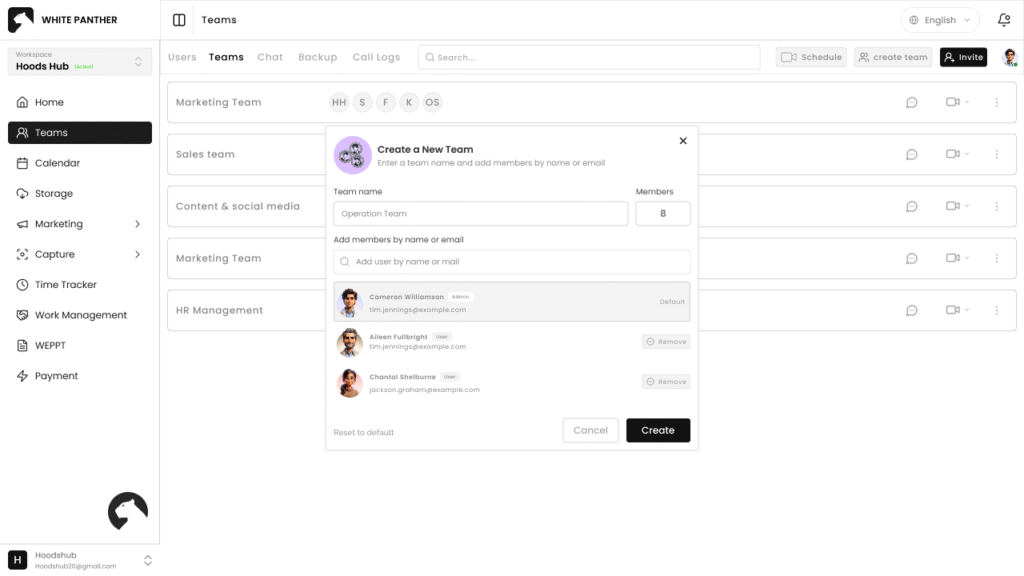
Create team spaces quickly and keep collaboration organized
Built for Startup founders, project managers, operations teams, and remote-first companies who want smoother workflows and tighter collaboration. WhitePanther brings chat, calls, files, and team workflows into one reload-free dashboard so everyone stays aligned.
Team Collaboration Without the Noise
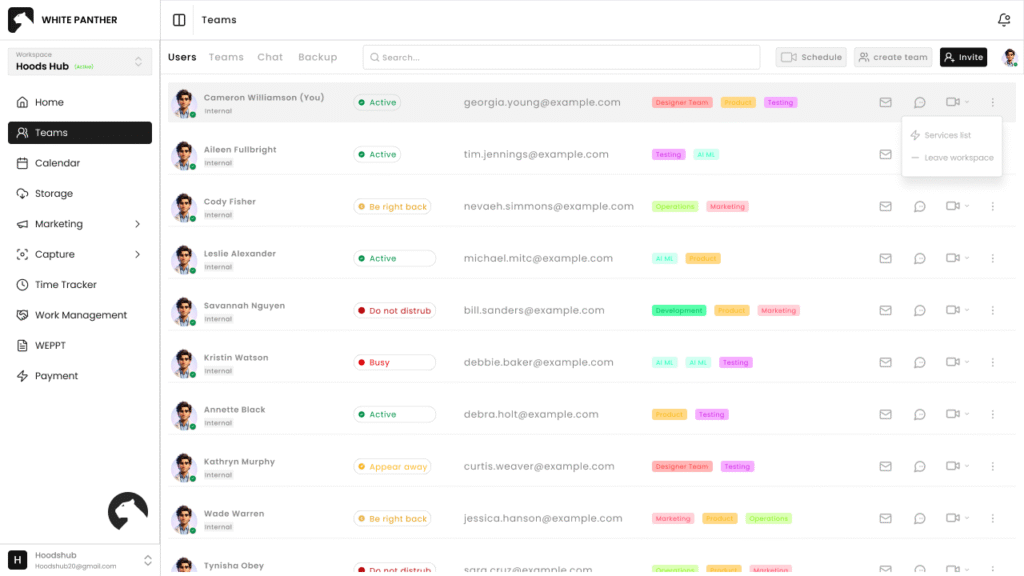
Keep track of every team member in one place. View their status, email, and assigned team instantly, and take quick actions like sending a message, starting a call, or sharing your screen.
View users with status and team name
Send email, message, or start chat/call
Screen share with individual users
Remove users when needed
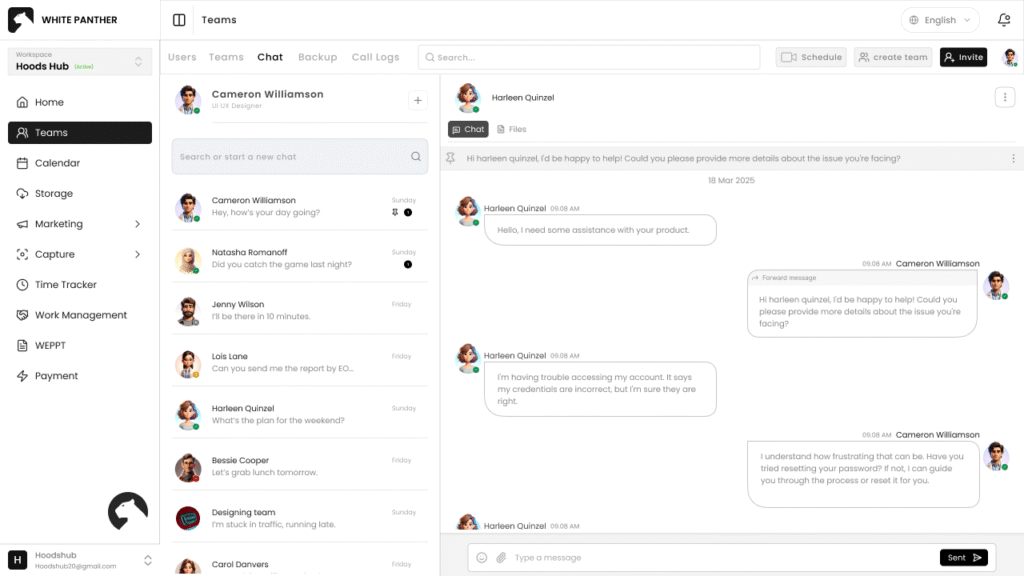
Keep conversations easy to follow and faster to act on. Search chats, shared files, tasks, and users directly inside the Team workspace, so nothing gets buried and context stays intact.
One-to-one and group conversation
Threaded and pinned messages for focus
File sharing with sender and timestamp context
Quick search from one bar
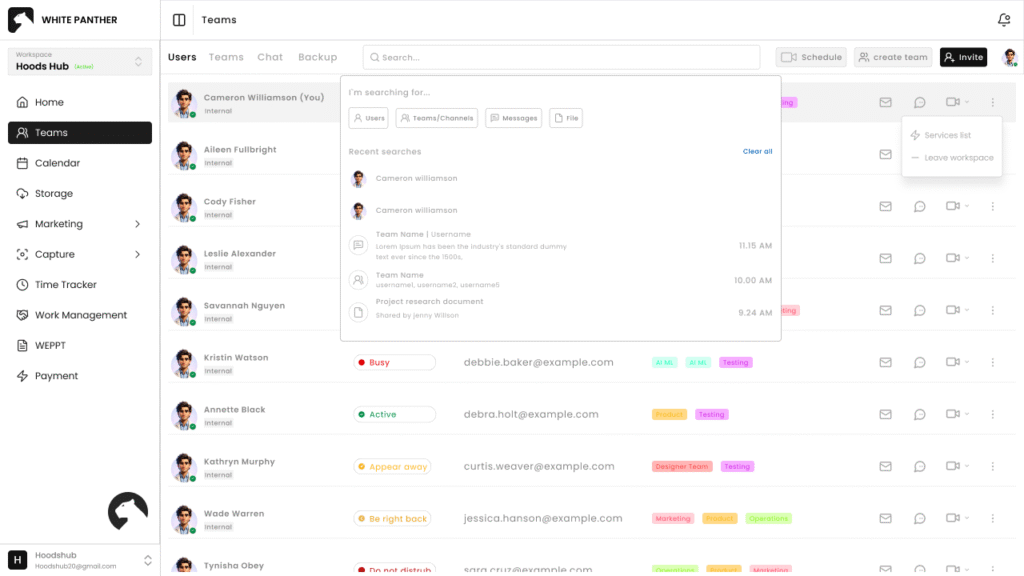
No more scrolling endlessly for that one file or chat. The universal search bar lets you find users, messages, files, or even past conversations in seconds.
Search by user, team, file, or channel
Saved search history for faster reuse
Bookmark important results
Easy access to past conversations
Scale your teams quickly without confusion. Create new teams, invite members by email, or share invite links directly on external platforms to grow collaboration faster.
Create teams with names and profiles
Add users by email or invite link
Assign members instantly to teams
Manage user count and team details
Finally, a Chat System That Fits Your Workflow
Built into your dashboard, not bolted on. WhitePanther keeps teamwork focused and friction-free.
Organize your team in one shared space where updates, ownership, and next steps are easy to follow. Clarity improves because everyone sees the same info at the same time.
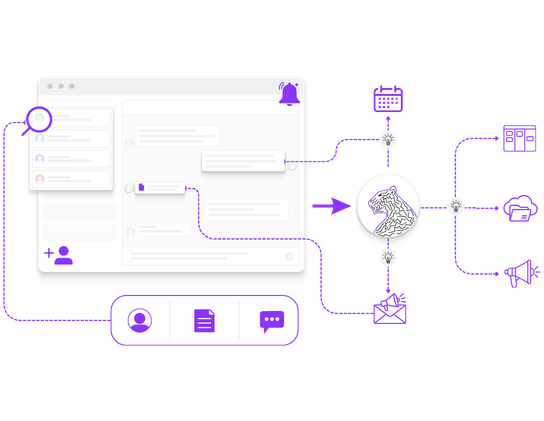
Team chat is where work starts. WhitePanther connects conversations with meetings, tasks, and shared work so you can move from discussion to action without losing context.
Chat mentions a meeting → Orchestrator suggests scheduling → Meeting gets created
A casual discussion becomes a confirmed meeting faster, so the next step does not stay stuck in chat.
Yes. Admins can control who is allowed to create teams and invite users, ensuring team structure, access, and growth stay organized and aligned with internal policies.
Where Teams Talk, Plan, and Move Forward
Keep every idea, message, and file in one shared space that grows with your team.